
Decide how exact your color match needs to be
When jewelry looks blue in one photograph and violet in another, selecting the more appealing image does not resolve the difference. Start by defining your requirement. Do you need a broadly cool-colored accessory, or a close match to one specific fabric? The second task needs stronger evidence than a pleasing hero photograph.
Use three layers to organize the comparison: the physical item, the photograph, and your display. A selected color option belongs to the item layer. Lighting and image processing belong to the photograph layer. Screen settings belong to the display layer. Keeping them separate helps you identify what changed instead of treating every disagreement as a different product color.
Confirm that you are comparing the same option
Before evaluating lighting, record the selected variant name. A product gallery may show several alternatives even after you have chosen one. Compare image captions, option labels, and the product's descriptive text rather than assuming every image represents the current selection.

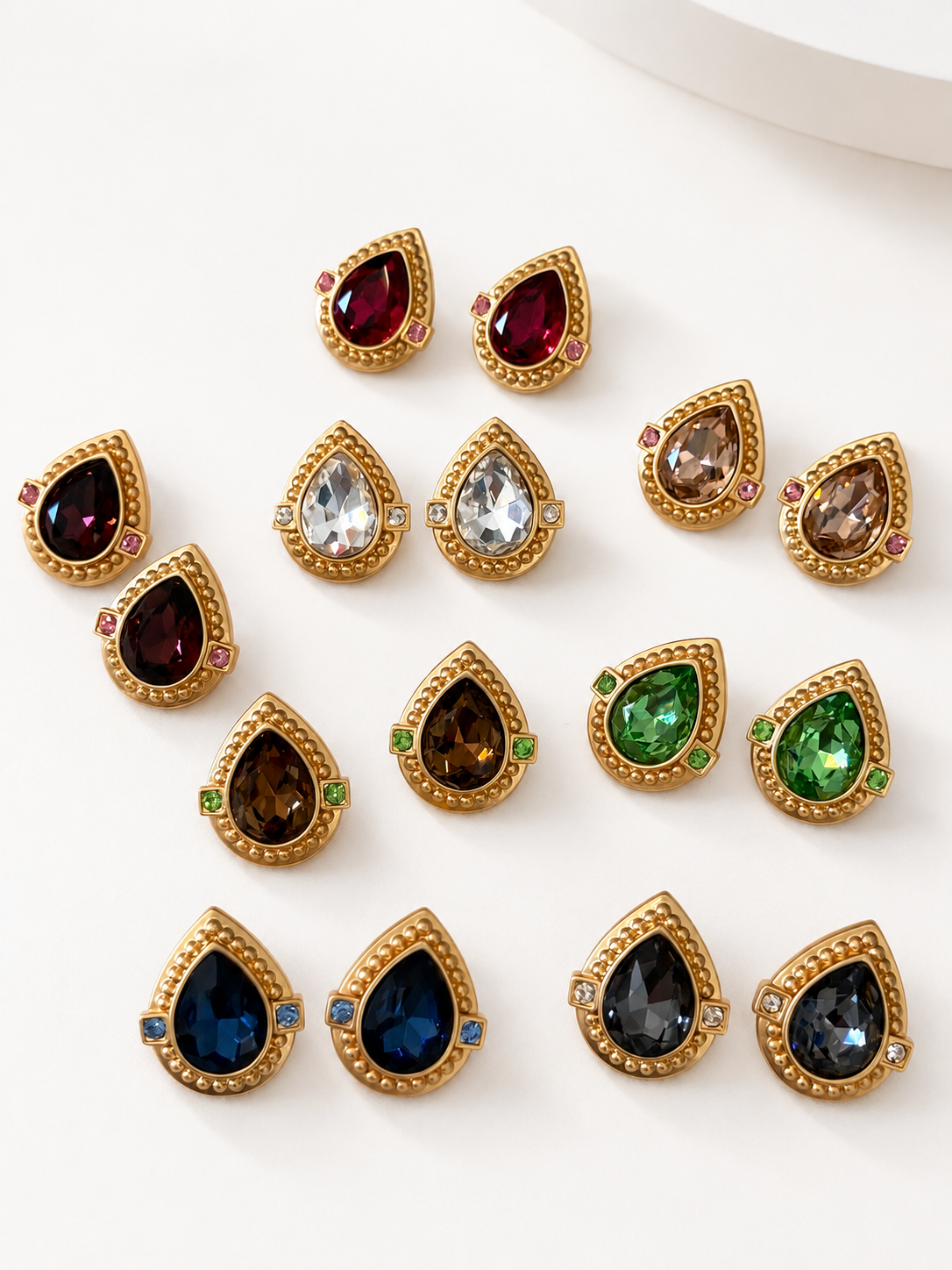
This listing offers Clear, Fuchsia, Brown, Dark Green, Light Green, Gray, Champagne, and Dark Blue. Keep those names intact in your notes. A bright reflection in a Dark Blue example would not change its selected label to Light Green. Equally, two differently labeled gallery options should not be treated as inconsistent photographs of the same pair.
Make a small image list: “front view of selected option,” “side view of selected option,” and “group image containing multiple options.” The third can help you understand the range, but it cannot replace the first two.
Read white balance as an image-wide clue
White balance concerns how a photograph renders color under its lighting. Adobe explains that white-balance adjustments affect all colors, not only white areas. Different lighting can introduce warmer, cooler, or other color casts into the image.
As a buyer, compare whether several parts of the scene shift together. If the background, framework, and main accent all look warmer in one image, a photo-wide difference is plausible. If only one reflective facet changes, its angle or surroundings may be more relevant. These are clues for deciding which view would help next, not a way to diagnose a photograph with certainty.
Do not assume a white-looking background is a calibrated reference. It could be cream-colored, lit differently, or edited separately. Sliding a screenshot's colors until that background becomes pure white does not recover the physical jewelry's true color. It only creates another interpretation of the same image.
Check the display without pretending to calibrate it
Look at the same image on the same device while checking whether a warming or adaptive-color mode is active. Apple's display guidance explains that Night Shift moves display colors toward warmer tones, while True Tone adjusts color and intensity in response to ambient light.
If practical for you, compare the image with optional warming adjustments temporarily disabled, then restore your preferred settings. Do not disable accessibility features you rely on simply to shop. You can instead record the setting and place more emphasis on the documented color name and additional product views.
A second device can reveal disagreement, but it does not automatically identify which screen is correct. If the same saved image looks blue on one display and violet on another, you have evidence of display variation. You have not discovered a second physical version of the earrings.
Keep screen brightness comfortable and consistent during comparisons. Raising it until a dark accent looks vivid can make the image more attractive without improving its accuracy. This is a practical consistency check, not professional display calibration.
Use a contradiction table to choose the next step
| What disagrees? | First thing to check | Useful next evidence |
|---|---|---|
| Two gallery images have different colors | Are they labeled as the same option? | Selected-variant images |
| The same image differs across devices | Display settings and viewing conditions | Same-file comparison under consistent settings |
| The whole scene changes from cool to warm | Lighting or image-wide processing | Another view with stated lighting context |
| One accent flashes another hue | Viewing angle and any stated effect | Continuous view of the same item |
| Color wording and all photographs conflict | Whether the selection or image assignment is wrong | A specific clarification tied to that option |
This original table gives each disagreement a different response. It avoids asking vaguely for “a more accurate photo,” which may produce another image under the same unexplained conditions. Name the exact comparison: the selected option at rest, in another ordinary lighting setting, with the same item kept in view.
A video adds context but still passes through a camera and display. More frames are useful when they show how appearance changes; they are not an automatic color guarantee.
Try a blue-versus-violet buying example
Imagine a shopper choosing earrings for a blue scarf. The selected option is labeled dark blue. The front image looks blue, the angled image looks violet, and a second phone makes both appear warmer. The shopper's first task is to confirm that the two photographs show the same option. The second is to separate the cross-device difference from the difference already present in the gallery.
If the brief is “a cool accent that works with several scarves,” the documented option and range of views may be enough to make a deliberate choice. If the brief is “nearly indistinguishable from this particular scarf,” they are not enough to establish that match. Choosing a contrast rather than a near-match is one practical alternative.
Write the outcome in ordinary language: “The listing supports a dark-blue option; the photographs do not establish an exact match to my scarf.” This is more useful than declaring the product inaccurate or convincing yourself that one screen has settled the question.
Save a comparison, not a color promise
Keep the exact option name, the views you compared, and your required level of matching together. Avoid borrowing a gemstone color diagnosis for decorative jewelry, and keep deliberately iridescent effects separate from ordinary photo or display differences.
Browse the earring collection once your color brief is clear, or continue with the Journal for other buying questions. The aim is not to extract a guaranteed physical hue from a screen. It is to make a proportionate decision using variant identity, multiple views, and an honest understanding of the display.