
If someone hears clicking during a video call, do not replace your necklace on the strength of a moving camera preview. First establish which microphone is sending the sound, obtain playback or a remote listener's report, and compare the same action with and without the suspected piece. The useful decision is whether to change jewelry for this call setup—not whether a design is universally quiet.
Name the selected input, not just the device you wear
Write down the meeting platform, selected microphone and selected speaker or headphones. Wearing a headset does not by itself establish that its microphone is the selected input. Your meeting settings may still name a laptop or another connected microphone.
Google Meet's pre-join guidance shows where to select those devices and check microphone activity. Its moving mic bar is an activity indication, not a recording you can inspect for a particular click. Hearing the speaker test sound checks an output; it does not tell you what your microphone transmitted.
Keep this device note beside the comparison. If you reconnect a headset or change rooms between calls, recheck the selected input rather than assuming the previous result still applies. Treat a changed microphone as a new setup, not the second half of the original comparison.
Listen through the call path
Use the platform's available playback feature or arrange a brief private call with a willing listener. Microsoft's Teams instructions describe selecting devices and making a test call that records and plays back a short message. The documented test-call feature is limited to the Windows and Mac desktop apps; do not promise that every browser or mobile client has it.
Use ordinary practice words, not a confidential meeting. For a listener check, agree on the purpose and ask for a precise report: “Did you hear a separate click when I reached for the mouse, or only while I was speaking?” There is no need to record the other person. A local phone recording beside the desk is a different observation from playback through the selected meeting microphone.
A successful test message is useful evidence for that attempt, not a guarantee about every remote connection. If a participant later reports a problem, repeat the relevant action with their help instead of dismissing it because the preview looked fine.
Compare one action while preserving the audio setup
Choose the action associated with the report: advancing a shared slide, reaching for notes or typing an answer. Use the same short spoken phrase and repeat that action without changing microphone selection, device position or audio settings between passes.
| Pass | Jewelry condition | What to record |
|---|---|---|
| A | Suspected piece worn normally | The action and the sound heard in playback or by the listener—not merely a sound heard at your own ear. |
| B | Only that piece removed | Whether the same sound occurs during the same action through the same selected input. |
| Optional return to A | Piece restored only if there is no physical interference | Whether the association repeats, without forcing a catch or reproducing an uncomfortable contact. |
Do not remove a necklace, switch to the headset microphone and stop typing all at once. If the noise changes, that combination of changes cannot tell you which mattered. This is a practical comparison, not an acoustic measurement or proof of the precise mechanism.
Work through a misleading necklace movement
Imagine a caller wearing headphones while Teams is set to the laptop microphone. A colleague reports a click whenever the caller advances a shared slide. The necklace also swings in the preview, making it an easy suspect.
In this hypothetical comparison, the click remains during pass B with the necklace removed. The next conclusion is not “choose a quieter necklace”: removing this one did not isolate the reported sound. Keep the necklace out of the comparison and narrow the action next—for example, compare the phrase with hands still against the same phrase plus the mouse reach. The keyboard, desk contact or another nearby item remains a possibility, not an established cause.
If instead the sound disappears without the piece and returns when it is restored, leaving it off for this setup is a reasonable choice. Describe that as a repeatable association, not proof that the necklace always makes noise. If the selected microphone changed between passes, discard the comparison and begin again with the intended input.
Make a jewelry decision only as broad as the evidence
Shure warns about long necklaces contacting lavalier microphones. That specific interaction is worth considering when a lavalier is actually in use; it is not evidence that every necklace will affect a laptop microphone. This call-path check does not replace a venue technician's microphone placement and sound check, or a physical headset-clearance assessment.
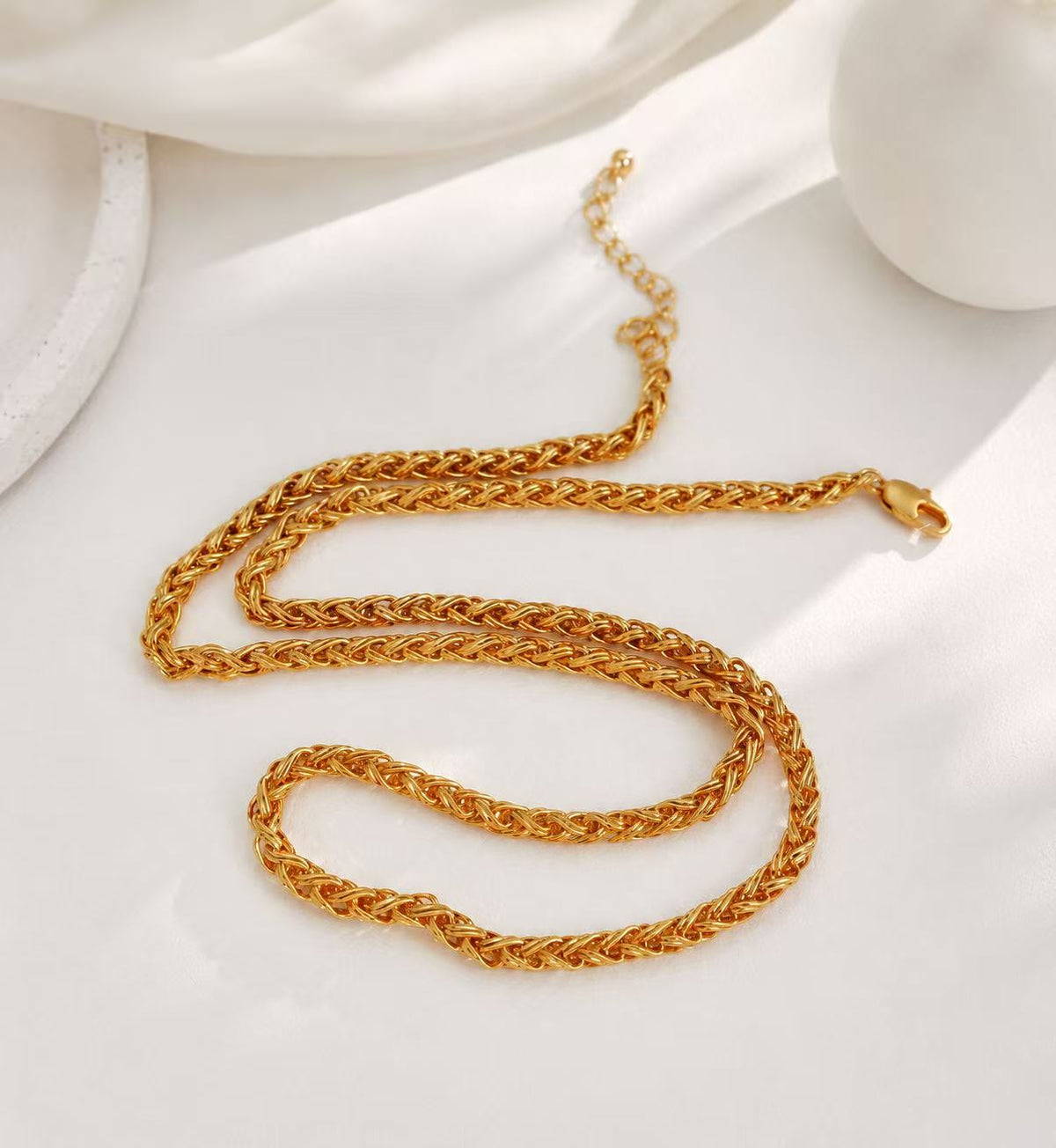
The woven-look chain necklace is a visual option, not a demonstrated noise-free choice. Its photograph cannot predict what a particular microphone or listener will hear.

For crop, reflections and jewelry position, the professional headshot guide already includes speech, movement, reset checks and one-variable retests. Those visual observations do not diagnose transmitted sound. Browse the necklace collection if you want another design, but a sound that persists without the necklace is a reason to investigate the call setup—not evidence that you need to buy one.